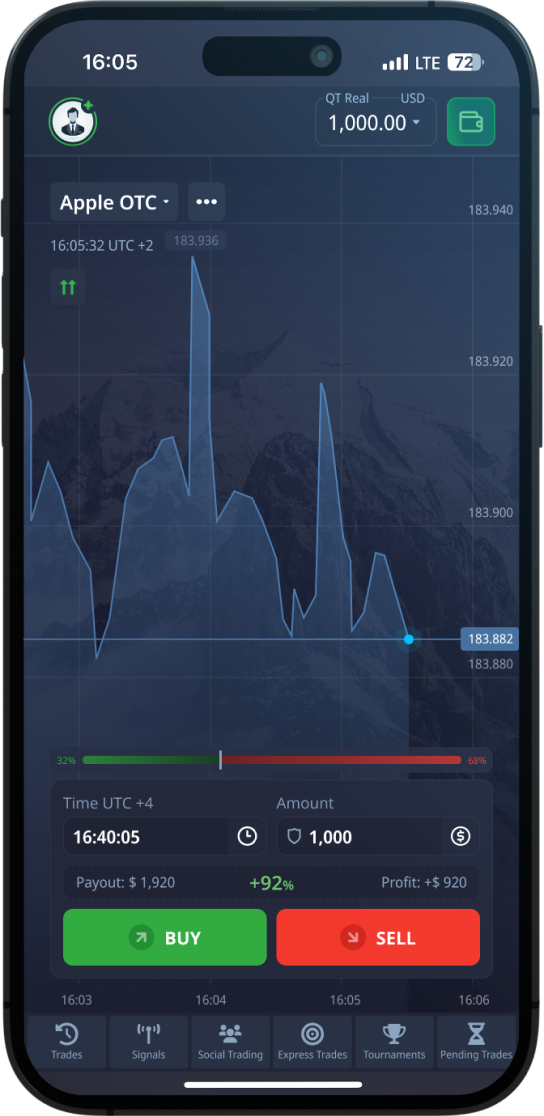
Reach your trading account in seconds from the mobile app or any browser. This guide walks you through signing in on Android and iOS, resetting a forgotten password, turning on two-factor protection, and fixing the login errors people run into most. Trading carries risk, and only money you can afford to lose should ever be at stake.

Once you sign in, the whole platform opens up. Here is what your Pocket Option account gives you access to on mobile and desktop.
Your account holds two separate wallets: a demo balance for practice and a real-money balance for live trading. You can switch between them with a single tap, so you never risk funds while you are still learning the interface.
Charts, indicators, asset lists, and your open positions all live behind the login. Your layout, favorite assets, and chart settings are tied to the account, so they follow you from phone to computer and back.
The cashier sits inside your account, where you manage cards, e-wallets, and crypto methods like Bitcoin. Payment history and pending withdrawal requests are all visible from one place once you are signed in.
Active deposit bonuses, promo codes, tournaments, and cashback offers are tracked under your profile. The account shows which promotions you have joined and any wagering conditions still attached to them.
Identity verification, personal details, and security settings are managed from the profile area. Completing verification here unlocks higher withdrawal limits and helps keep the account protected.
Every trade, deposit, and withdrawal is logged in your account history. You can review past positions, study your win rate, and export records, which makes it easier to learn from earlier sessions.
Signing in works the same way on the mobile app and in a desktop browser. Follow these steps and you will be inside your workspace in well under a minute.
Launch the Pocket Option app on your phone, or open the official website in your browser. Make sure you are on the genuine app or domain before typing anything, since fake clones exist.
On the welcome screen, choose Login rather than Sign Up. New users who do not have an account yet should register first, then return here to sign in.
Type the email address you registered with and the password you set during sign-up. Both fields are case-sensitive for the password, so check that Caps Lock is off.
If you registered through Google, Facebook, or another social account, pick that button instead of email. The platform will open a secure window to confirm your identity.
If you enabled 2FA, enter the one-time code from your authenticator app or email. This extra step keeps your account safe even if someone learns your password.
After the credentials are accepted, you arrive at the main workspace with your balance, charts, and open trades. Confirm whether you are on the demo or real account before placing any order.
Forgot your password? You do not need to create a new account. Reset it directly from the login screen in a few minutes.
On the login screen, select the Forgot Password or Reset Password link located just below the password field. This starts the recovery flow without affecting your balance or history.
Type the same email address you used when you opened the account. The reset instructions can only be sent to the email already linked to your profile, so accuracy matters here.
Check your inbox for a message from Pocket Option containing a reset link or code. If it does not arrive within a few minutes, look in your spam or promotions folder before requesting another.
Follow the link and choose a fresh, strong password that you have not used elsewhere. Mix upper and lower case letters, numbers, and symbols to make it hard to guess.
Return to the login screen and sign in using your email and the password you just created. Update any saved password in your browser or phone so it stays in sync.
Most sign-in trouble comes down to a handful of causes. Match your symptom to the row below and apply the suggested fix.
| Problem | Likely Cause | How to Fix It |
|---|---|---|
| "Wrong password" error | Typo, Caps Lock on, or a recently changed password | Re-type the password carefully, disable Caps Lock, or use Forgot Password to reset it |
| "Account not found" | Logging in with the wrong email or wrong login method | Confirm the exact email you registered with, or try the social button you originally used to sign up |
| Page or app keeps loading | Weak connection, server hiccup, or outdated app | Switch between Wi-Fi and mobile data, restart the app, and update it from the store |
| Not receiving 2FA code | Code delayed, wrong device clock, or full inbox | Sync your phone clock, check spam, and request a new code; use a backup method if you set one |
| Reset email never arrives | Email in spam or a mistyped address | Search all folders including spam and promotions, and verify the address before resending |
| Login button does nothing | Browser cache, blocked scripts, or an old app build | Clear the cache, disable conflicting extensions, or reinstall the latest app version |
| "Account blocked" message | Security hold, multiple accounts, or verification needed | Contact official support, complete verification, and avoid creating duplicate accounts |
| Logged out repeatedly | Cookies disabled or an unstable network | Enable cookies, stay on a stable connection, and keep the app updated to the newest release |
Download the official Pocket Option app for your device, then log in with the same email and password you use on the web.
Pocket Option keeps a single account that works everywhere, so the email and password you set at registration unlock both the mobile app and the desktop platform. On a phone, the app remembers your session by default, which means you usually open it straight to the trading screen instead of typing credentials every time. That convenience is great for checking positions on the go, but it also means anyone who picks up an unlocked phone could reach your funds, so a screen lock is essential.
On a computer, you log in through the browser, and the session lives in cookies tied to that device. If you use a shared or public machine, always log out manually when you finish and avoid letting the browser save the password. Whether you are on Android, iOS, or desktop, your balance, trade history, and settings stay perfectly in sync because they are stored on the account rather than the device. Switching between phone and PC mid-session is seamless and requires no transfer of data on your part.
Your login is the front door to real money, so treating it casually is a mistake many new traders regret. Start with a password that is unique to Pocket Option and not reused from your email, social media, or any other site. A long passphrase built from several unrelated words, mixed with numbers and symbols, is far harder to crack than a short complex string, and a reputable password manager can store it so you never have to memorize it. The single biggest favor you can do yourself is enabling two-factor authentication, which adds a one-time code on top of your password.
Beyond the basics, stay alert to phishing. Scammers send emails and messages that imitate Pocket Option, hoping you will type your credentials into a fake login page. The platform will never ask for your password by email or chat, and no legitimate support agent needs it. Always reach the login screen by opening the official app or typing the real address yourself rather than clicking links from unsolicited messages. If you ever suspect your account has been accessed by someone else, change your password immediately and contact official support so they can secure it.
Being locked out is stressful, especially when you have open trades, but most cases resolve quickly once you work through them calmly. First, rule out the simple things: a mistyped email, an accidental Caps Lock, or autofill inserting an old password. If the credentials are definitely correct and you still cannot enter, the password reset flow described above clears up the majority of problems within minutes. Make sure you are using the same login method you registered with, because an account opened through Google will not accept an email-and-password attempt.
If resetting does not help, the issue may sit outside your credentials. A poor connection, an outdated app, or a server maintenance window can all block sign-in temporarily. Try switching networks, updating or reinstalling the app, and waiting a short while before trying again. When the account itself shows a block or verification notice, that is a deliberate security measure, and only official Pocket Option support can lift it. Reach out through the in-app chat or the contact details on the genuine website, and be ready to confirm your identity so they can help safely.
Open the official Pocket Option app on your Android or iOS device and tap the Login button on the welcome screen. Enter the email and password you set when you registered, or choose the social login if you signed up with Google or Facebook. If you have two-factor authentication enabled, type the one-time code to finish. You will then land directly on your trading dashboard with your balance and charts ready.
On the login screen, tap the Forgot Password link below the password field and enter the email address tied to your account. Pocket Option will send a reset link or code to that inbox, so check your spam folder if it does not appear within a few minutes. Follow the link to create a new, strong password, then return to the login screen and sign in with it. Your balance, trade history, and settings remain untouched throughout the reset.
The most common reasons are an active Caps Lock, an extra space added by autofill, or a password that was changed on another device and is now out of sync. Try typing it manually and slowly, and double-check that you are entering the password for the right account. If it still fails, the safest move is to reset it through Forgot Password, which guarantees you and the server agree on the same credential. After resetting, update any saved passwords in your browser or phone.
Yes. Your Pocket Option account is stored on the server, not on a single device, so you can log in from the mobile app and a desktop browser with the same email and password. Your balance, open positions, and history stay synchronized across both. Keep in mind that for security you may sometimes be asked to confirm your identity when signing in from a new device, and you should always log out of shared or public computers when you finish.
Two-factor authentication, or 2FA, adds a second verification step to your login. After entering your password, you also enter a one-time code from an authenticator app or your email, so a thief who steals only your password still cannot get in. It is strongly recommended for any account that holds real money, including Pocket Option. You can enable it in your account security settings, and it adds only a few seconds to each sign-in while dramatically improving protection.
Codes are usually delayed by network issues, a full or filtered inbox, or an incorrect device clock when using an authenticator app. Start by checking your spam and promotions folders and confirming the email on file is correct. For authenticator codes, make sure your phone's date and time are set to update automatically, since a drifting clock generates invalid codes. If nothing works, request a fresh code, use a backup method if you configured one, or contact official support.
An account block is typically a security measure triggered by suspicious activity, missing verification, or a policy issue such as duplicate accounts. You cannot lift the block yourself, so the correct step is to contact official Pocket Option support through the in-app chat or the verified website. Be ready to confirm your identity with the documents you used at registration. Avoid creating a second account, as that can complicate the review and delay regaining access to your funds.
Public Wi-Fi networks at cafes, airports, and hotels are riskier because traffic can be intercepted on poorly secured connections. If you must log in away from home, a trusted VPN adds an encrypted layer that protects your credentials. Whenever possible, use your mobile data connection instead of an open hotspot for anything involving your trading account. Combined with two-factor authentication, these precautions greatly reduce the chance of someone capturing your login.
Logging in only works after you have registered, so first-time users need to create an account. Choose the Sign Up or registration option instead of Login, enter your email, set a strong password, and accept the terms. Many users start with the demo balance to practice with virtual funds before depositing real money. Once your account exists, you can return to the login screen any time and sign in on the app or web. Remember that trading involves risk, so only use funds you can afford to lose.
Repeated logouts usually point to disabled cookies in your browser, an unstable internet connection, or an outdated app build that drops sessions. Enable cookies for the platform, stay on a reliable network, and update the app to the newest version from your store. Some logouts are intentional security timeouts after a period of inactivity, which is normal and protects your funds. If the problem persists across devices and networks, contact support so they can check whether anything unusual is happening on the account.
Most traders end up signing in from more than one place over time, such as a phone for quick checks during the day and a laptop in the evening. Pocket Option keeps your account synced in the cloud, so your balance, trade history, and settings look the same no matter which device you open. Logging in on a new device does not erase the old one, but it is worth knowing how the platform tracks where you are signed in so you can spot anything unfamiliar.
When you sign in on a fresh phone, tablet, or browser, the platform may treat it as a new session and ask you to confirm your identity through email or a verification code. This extra step is normal and protects you if someone tries to reach your account from a device you have never used. If you trade from several gadgets, expect to confirm each one the first time, after which it is usually remembered for a while.
It is good practice to review which devices are connected, especially if you have logged in on a shared or borrowed computer. Signing out of sessions you no longer use closes the door on anyone who might pick up that device later. Treat this like checking which keys you have handed out: the fewer copies floating around, the safer your account stays.
Nobody wants to type a password every single time they open the app, and Pocket Option offers ways to stay signed in so trading feels quick. On a personal phone, leaving the session active is reasonable because the device is already protected by your screen lock. The convenience of a one-tap open has to be balanced against the simple reality that whoever holds the phone can reach the app, so your phone lock becomes the real front door.
Browsers handle this differently. A 'remember me' option or a saved cookie keeps you signed in until it expires or until cookies are cleared. Clearing your browser history, using a strict privacy extension, or opening the platform in private or incognito mode can quietly log you out, which surprises people who assumed they were still signed in. If you suddenly land on the login screen for no obvious reason, a cookie reset is usually the cause rather than an account problem.
There is a sensible middle ground between convenience and caution. Keep the session active on hardware only you touch, and require a fresh login on anything shared or public. Pair a remembered session with a strong device lock and, ideally, two-factor authentication, so even a stay-signed-in setup still has a second barrier behind it.
Your login email is more than just a username; it is the recovery channel for password resets and the destination for security codes. If you lose access to that inbox, you can effectively lose the easiest path back into your trading account, which is why keeping it current matters. People often forget that a defunct old email tied to their account becomes a weak point the moment they need to reset anything.
Changing your password is straightforward from inside your account settings once you are signed in, and you should do it periodically or immediately after any scare. A good replacement is long, mixes letter cases with numbers and symbols, and is not reused from another website. Reused passwords are dangerous because a leak somewhere else hands attackers a ready-made key to try on your trading login.
If you ever need to update the email address attached to the account, the platform will normally verify both the old and new inboxes to confirm the change is genuine. Make sure you still control the original email before starting, because verification steps may land there. Doing this calmly while you still have full access is far easier than scrambling after you have already locked yourself out.
How the common ways to access your account differ in convenience and security.
| Login method | Best for | Convenience | Security notes |
|---|---|---|---|
| Email and password | Everyday access on any device | Medium | Solid when the password is long, unique, and paired with 2FA |
| Social or Google sign-in | Fast setup without a separate password | High | Only as safe as the linked account, so protect that account too |
| Saved session ('remember me') | Your own phone or personal PC | Very high | Convenient but exposed if the device is unlocked or shared |
| Password reset link | Recovering a forgotten password | Low | One-time use and time-limited; works only with inbox access |
| Two-factor code | Adding a second barrier at login | Medium | Strongest option; blocks logins even if the password leaks |
If you originally registered with a Google or social account, you should sign in the same way rather than trying to enter an email and password that were never set. The login screen offers these one-tap options alongside the standard email field. Keep in mind that your trading account is then only as secure as the linked Google or social profile, so protect that account with a strong password and its own two-factor authentication. If you forget which method you used, try the social button first, since a mismatched method is a very common reason logins fail.
Once you are signed in, open your profile or account settings and look for the security or password section. You will usually be asked to enter your current password and then type the new one twice to confirm it. Choose something long and unique that you do not reuse anywhere else, and save it in a password manager so you do not lock yourself out later. Changing it from inside the account is quicker than the forgotten-password flow and is the right move whenever you suspect your old password may have been seen.
Not automatically in most cases, since the platform allows your account to stay active across devices. Your new phone simply opens a fresh session while the old one may remain signed in until it expires or you log out manually. The first login on a new device often triggers a verification step by email or code to confirm it is really you. If you have replaced or sold a phone, it is wise to log in elsewhere and end any old sessions so nothing is left open on hardware you no longer control.
Pocket Option watches for logins that look unusual, such as a new device, a different network, or a sudden change in location, and adds a confirmation step to make sure it is genuinely you. This is a protective measure, not a sign that something is wrong with your account. You typically confirm through an email link or a short code sent to your inbox or authenticator app. If you receive such a prompt when you did not just try to log in, do not approve it, and change your password right away as a precaution.
Clearing cookies or browsing data removes the small files that keep you signed in, so the next time you open the platform you will land on the login screen. This is normal and not a sign of a hacked or broken account. Privacy extensions, strict tracking protection, and incognito or private windows can cause the same effect by discarding session data. Just sign in again with your email and password, and if you want to stay signed in on a personal computer, allow the platform to store its cookie.
On a personal phone that is protected by a PIN, fingerprint, or face unlock, staying logged in is reasonable because your device lock acts as the real barrier. The trade-off is that anyone who can unlock your phone can also open the app, so a strong screen lock matters a great deal. On a borrowed, shared, or public device you should always sign out completely rather than just closing the app. Adding two-factor authentication gives you a second layer of safety regardless of whether you stay signed in.
Most serious login trouble does not start with a forgotten password. It starts on a fake page that looks almost identical to the real one. Scammers buy lookalike domains and run ads that copy the Pocket Option logo, colors, and login form. You type your email and password, the page shows a spinning loader, and then nothing works because your details were just handed to a stranger. On a phone this is easier to miss, since the address bar is short and hides most of the web address.
Before you ever enter a password, slow down and check where you are. The official app is the safest place to sign in because it always points to the genuine service and cannot be swapped out by a search ad. If you log in through a browser instead, look at the full domain name, not just the part that says Pocket Option. Anything with extra words, dashes, or odd endings tacked onto the name should be treated as suspicious and closed immediately.
If you reached the login form by clicking a link in an email, a chat message, or a social media post, assume it could be fake until proven otherwise. Real password reset emails do not pressure you to act in the next two minutes, and the genuine service never asks for your full password by email or chat. When something feels rushed or threatening, that urgency is the trick, not a real deadline.
Typing a long, strong password on a phone keyboard is tedious, so people reuse short ones or save them in risky places. A sticky note on your desk, a screenshot in your photo gallery, or a plain note titled "passwords" are all easy targets if your phone is lost or shared. The goal is to make signing in quick for you and slow for everyone else, and the tools built into your phone already do most of that work if you let them.
A dedicated password manager is the cleanest option. It stores your Pocket Option password in an encrypted vault, fills it in for you on the right page only, and can generate a unique password you never have to memorize. Because it matches the saved entry to the exact web address, it also quietly protects you from fake pages: if the manager refuses to autofill, that is a strong hint you are not on the genuine site. Your phone's built-in keychain offers a lighter version of the same idea.
Be careful with the "save password" prompt inside a shared or public browser. On your own phone, that prompt is reasonable because the device is locked behind your fingerprint or face. On a friend's tablet, a library computer, or a work laptop, saying yes leaves your credentials behind for the next person. The simplest rule is to only allow a browser or app to remember your login on a device that locks automatically and belongs only to you.
Pocket Option separates a practice balance, often called a demo, from your real funds. The login itself is the same, but what you do after signing in is very different, and confusing the two is a common source of frustration rather than a technical fault. New users sometimes think the platform took their deposit and lost it, when in fact they were placing trades on the practice balance the whole time, or the reverse, which is far more serious.
After you log in, take a moment to confirm which balance is active before you do anything that involves money. The app shows a clear label and a balance figure near the top of the trading screen, and you can switch between practice and real with a single tap. Demo funds are not real and cannot be withdrawn; they exist so you can test the interface, try strategies, and get comfortable placing and closing positions without pressure.
Treat the practice mode as your training ground every time you sign in on a new device. Before risking real money on an unfamiliar phone or a fresh app install, log in, switch to demo, and walk through one full cycle of opening and closing a position. This confirms your login works end to end, the app responds normally, and you know exactly where the balance switch lives, all without a single real dollar on the line. Remember that trading carries real risk, and a winning streak on demo does not guarantee the same result with real funds.
Quick reference for spotting a problem before you hand over your details or lose access.
| What you see | Likely meaning | Safer move |
|---|---|---|
| The page asks for your password and a card or bank code together | Phishing page harvesting full payment details | Close the tab and open the official app to sign in |
| A login link arrives in an unexpected email or chat | Possible fake link to a lookalike domain | Ignore the link; navigate from the app or a bookmark you saved |
| Your password manager refuses to autofill on the login form | The web address does not match the saved real one | Check the full domain before typing anything by hand |
| You are signed out within minutes, again and again | Cleared cookies, low storage, or an outdated app | Update the app, free up storage, and allow it to stay signed in |
| A code is requested from a country you have never visited | Someone else may be trying your password | Deny it, change your password, and turn on two-step verification |
| The app shows a real balance you do not recognize | You may be on a different or fake account | Sign out, verify the email shown, and log in fresh from the app |
The safest signal is the route you took to get there: opening the installed app always lands you on the genuine sign-in, while search ads and message links can point anywhere. If you must use a browser, read the entire web address, including the ending, rather than trusting the logo and colors, which are trivial to copy. A reliable tell is your password manager refusing to autofill, since it only fills on the exact address it saved. When in doubt, close everything and start again from the app or a bookmark you created yourself.
On a phone that locks with your fingerprint or face and belongs only to you, letting a trusted password manager or the built-in keychain remember it is reasonable and far safer than reusing a short password you can memorize. The risk appears on shared or public devices, where a saved password is simply left behind for the next person. As a rule, only allow a device to store your login if it locks automatically and no one else uses it. Avoid plain notes, screenshots in your gallery, or paper, since those are the easiest things for anyone holding your phone to find.
Once you are signed in, the trading screen shows a clear label and a balance figure near the top, and a single tap switches between the practice (demo) balance and your real funds. Always read that label before doing anything that involves money, because the login is identical for both and it is easy to assume you are on one when you are on the other. Demo money is not real and cannot be withdrawn; it exists for testing the interface and trying ideas. Confirming the active balance every session prevents the common scare of thinking a deposit vanished when trades were simply placed on practice.
Yes, and it is one of the most common ways people lose access to accounts. If another website you use is breached and your reused password leaks, attackers will try that same email and password combination on financial platforms, including this one. A unique password for your Pocket Option login means a leak somewhere else cannot open this account. The easiest way to manage many unique passwords is a password manager that generates and stores long random ones, so you only need to remember the single master password that protects the vault.
That prompt usually means a sign-in attempt came from a device, browser, or location the system has not seen on your account before, which is a normal protective check. If it was you, traveling or using a new phone, confirm it and continue. If it was not you, deny it, change your password right away, and turn on two-step verification so a stolen password alone is not enough to get in. Receiving such a request when you were not trying to log in is a strong sign someone has your password and you should act immediately.
Install the official app rather than signing in through a random browser link, then log in and immediately switch to the practice balance before touching real money. Run one full cycle of opening and closing a position on demo to confirm the app works end to end and you can find the balance switch. While you are there, check that two-step verification is on and that the email tied to your account is still one you control. Doing this on practice funds first means you verify the new device thoroughly without putting a single real dollar at risk.
Open the Pocket Option app or website and sign in with your email and password. New here? Create an account first, then come back to log in. Trade responsibly — only risk money you can afford to lose.
Open the App